
quicker than it looks.
Setup guide. Watch it, or read it.
Pick your platform. A few steps, and the panel says License OK.
How to install the EA in MetaTrader 4
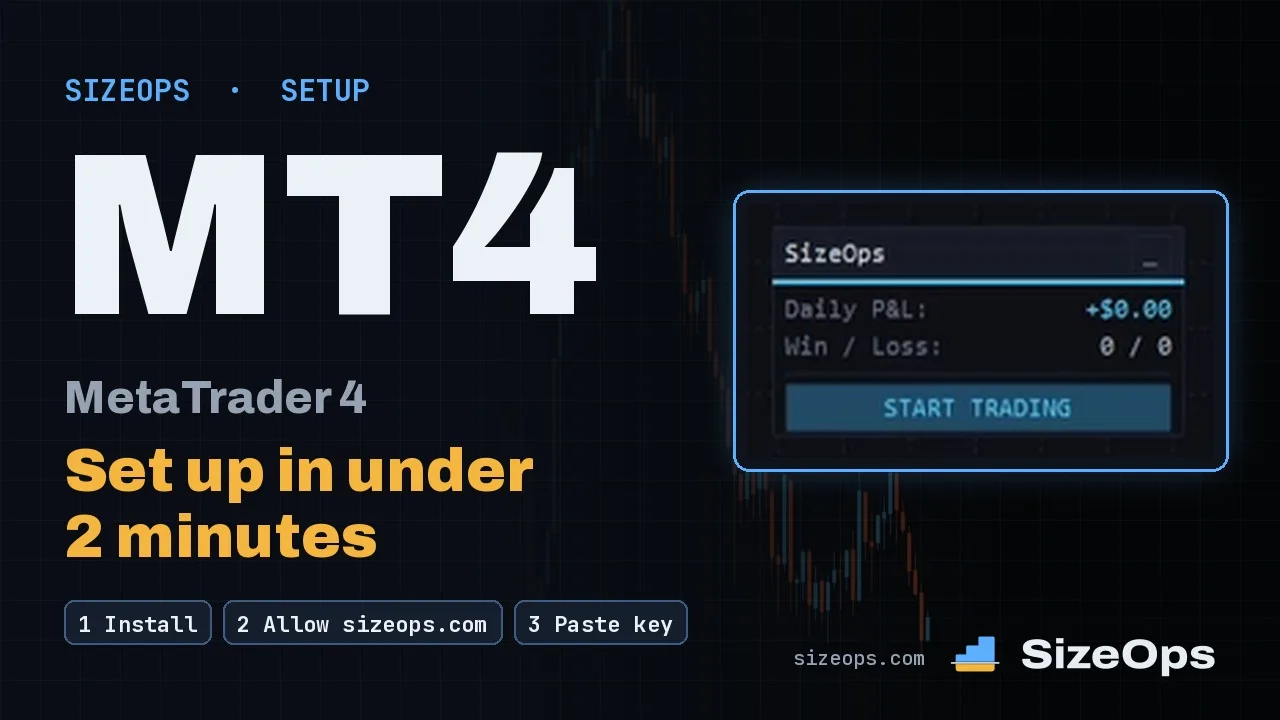
Step 1: Find your account number
Top right of MetaTrader 4, or Navigator then Accounts.
Step 2: Have a free seat on sizeops.com
Log in then Licenses: your plan shows its free seats. Nothing to type: put your key in SizeOps; the account registers itself the first time it connects.
- Your plan runs as many trading accounts at a time as you picked, on any platform: MetaTrader 4, MetaTrader 5 and NinjaTrader 8, mixed any way.
- Changing it later: ⇄ on the account frees its seat (the old one keeps working until the next account connects; the switch is only used then). ✕ removes it for free.
- Want a seat kept for one account? On the free seat, or add one yourself and type the account number.
- On a free trial: open Trials in your account and Start 7 days free. The first account on that platform that connects with your key takes the seat, and its 7 days start then.
Step 3: Install SizeOps
In MetaTrader 4: File then Open Data Folder. Copy
SizeOpsMT4.ex4intoMQL4\Experts, then restart MetaTrader 4.The file: Download on your Licenses card.
Step 4: Allow trading and WebRequest
Tools then Options then Expert Advisors: tick Allow automated trading, tick Allow WebRequest for listed URL and add
https://sizeops.com.Step 5: Add SizeOps to a chart
Drag SizeOps from Navigator then Expert Advisors onto a chart. On the Common tab, tick Allow live trading.
Step 6: Paste your key
Copy your key from Licenses then Your key (Show, then Copy key). On the Inputs tab, paste it into License key, at the top under 1. Start here. Press OK.
Your key is the same on every platform. Capital letters, spaces and dashes don't matter.
Step 7: Check it's connected
The panel shows License OK, and on sizeops.com the account shows on your Licenses card, connected.
Not connecting? The panel title shows SizeOps (!), and the reason sits under CHECK LICENSE. See License in the user manual.
It says Can't reach sizeops.com – check internet & WebRequest or WebRequest blocked? Allow https://sizeops.com as in step 4 (MetaTrader's error 4060 on MetaTrader 4, 4014 on MetaTrader 5). It says Account not on license? Check a seat is free on sizeops.com: put your key in SizeOps; the account registers itself the first time it connects.
Good to know
- Press F7 on the chart to open SizeOps' settings.
- Two charts of the same symbol with the same Magic number manage the same trades. Give each chart its own Magic number to keep them apart.
- The +/− buttons change risk or R:R for your next trade only. After you press EXECUTE, your defaults come back.
- Dragging the stop changes this plan only. The next one starts at your setting.
- On SizeOps 5.29? It doesn't know the new keys. Update to SizeOps 5.32 first, then paste your key.
- Which key is in use? Hover the panel title: Key: SIZE-E7K2-••••-•••• (the rest stays hidden).
How to install the EA in MetaTrader 5
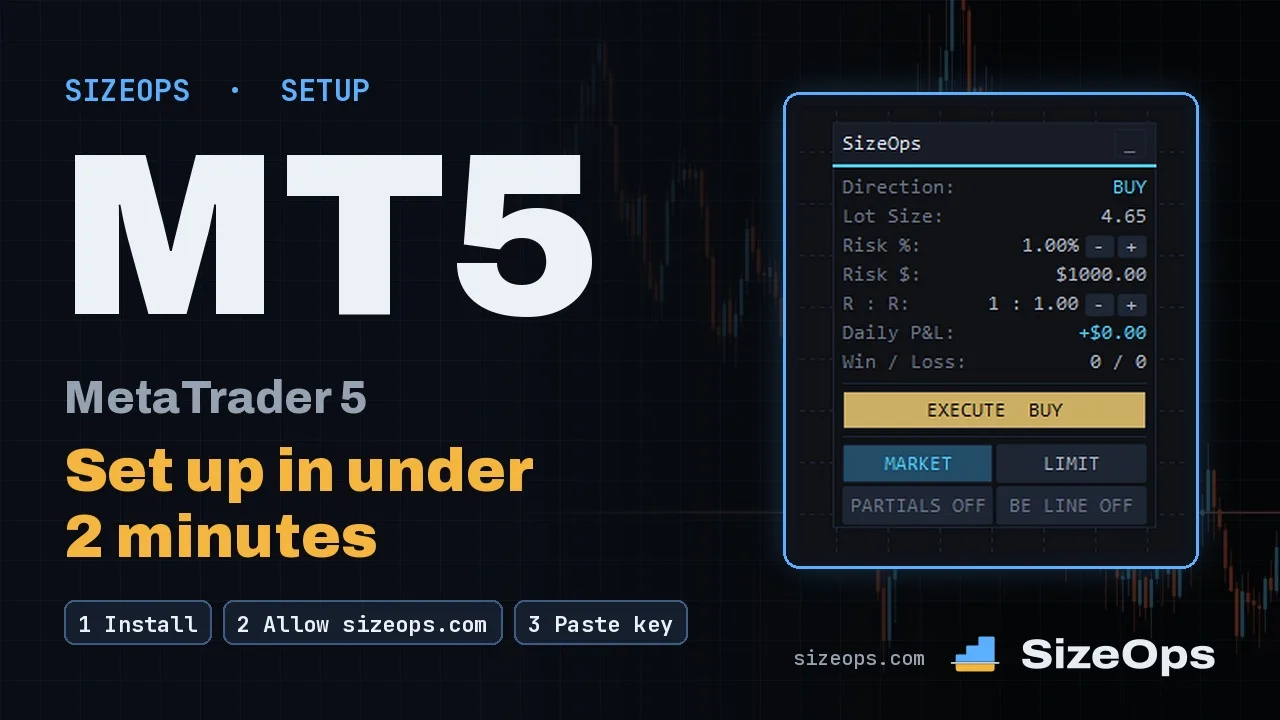
Step 1: Find your account number
Top right of MetaTrader 5, or Navigator then Accounts.
Step 2: Have a free seat on sizeops.com
Log in then Licenses: your plan shows its free seats. Nothing to type: put your key in SizeOps; the account registers itself the first time it connects.
- Your plan runs as many trading accounts at a time as you picked, on any platform: MetaTrader 4, MetaTrader 5 and NinjaTrader 8, mixed any way.
- Changing it later: ⇄ on the account frees its seat (the old one keeps working until the next account connects; the switch is only used then). ✕ removes it for free.
- Want a seat kept for one account? On the free seat, or add one yourself and type the account number.
- On a free trial: open Trials in your account and Start 7 days free. The first account on that platform that connects with your key takes the seat, and its 7 days start then.
Step 3: Install SizeOps
In MetaTrader 5: File then Open Data Folder. Copy
SizeOpsMT5.ex5intoMQL5\Experts, then restart MetaTrader 5.The file: Download on your Licenses card.
Step 4: Allow trading and WebRequest
Tools then Options then Experts: tick Allow algorithmic trading, tick Allow WebRequest for listed URL and add
https://sizeops.com.Step 5: Add SizeOps to a chart
Drag SizeOps from Navigator then Expert Advisors onto a chart. On the Common tab, tick Allow Algo Trading.
That's how you add the EA to MT5. To use the EA in MT5 on another symbol, drag it onto that chart too.
Step 6: Paste your key
Copy your key from Licenses then Your key (Show, then Copy key). On the Inputs tab, paste it into License key, at the top under 1. Start here. Press OK.
Your key is the same on every platform. Capital letters, spaces and dashes don't matter.
Step 7: Check it's connected
The panel shows License OK, and on sizeops.com the account shows on your Licenses card, connected.
Not connecting? The panel title shows SizeOps (!), and the reason sits under CHECK LICENSE. See License in the user manual.
It says Can't reach sizeops.com – check internet & WebRequest or WebRequest blocked? Allow https://sizeops.com as in step 4 (MetaTrader's error 4060 on MetaTrader 4, 4014 on MetaTrader 5). It says Account not on license? Check a seat is free on sizeops.com: put your key in SizeOps; the account registers itself the first time it connects.
Good to know
- Press F7 on the chart to open SizeOps' settings.
- Two charts of the same symbol with the same Magic number manage the same trades. Give each chart its own Magic number to keep them apart.
- The +/− buttons change risk or R:R for your next trade only. After you press EXECUTE, your defaults come back.
- Dragging the stop changes this plan only. The next one starts at your setting.
- On SizeOps 5.29? It doesn't know the new keys. Update to SizeOps 5.32 first, then paste your key.
- Which key is in use? Hover the panel title: Key: SIZE-E7K2-••••-•••• (the rest stays hidden).
How to install SizeOps in NinjaTrader 8
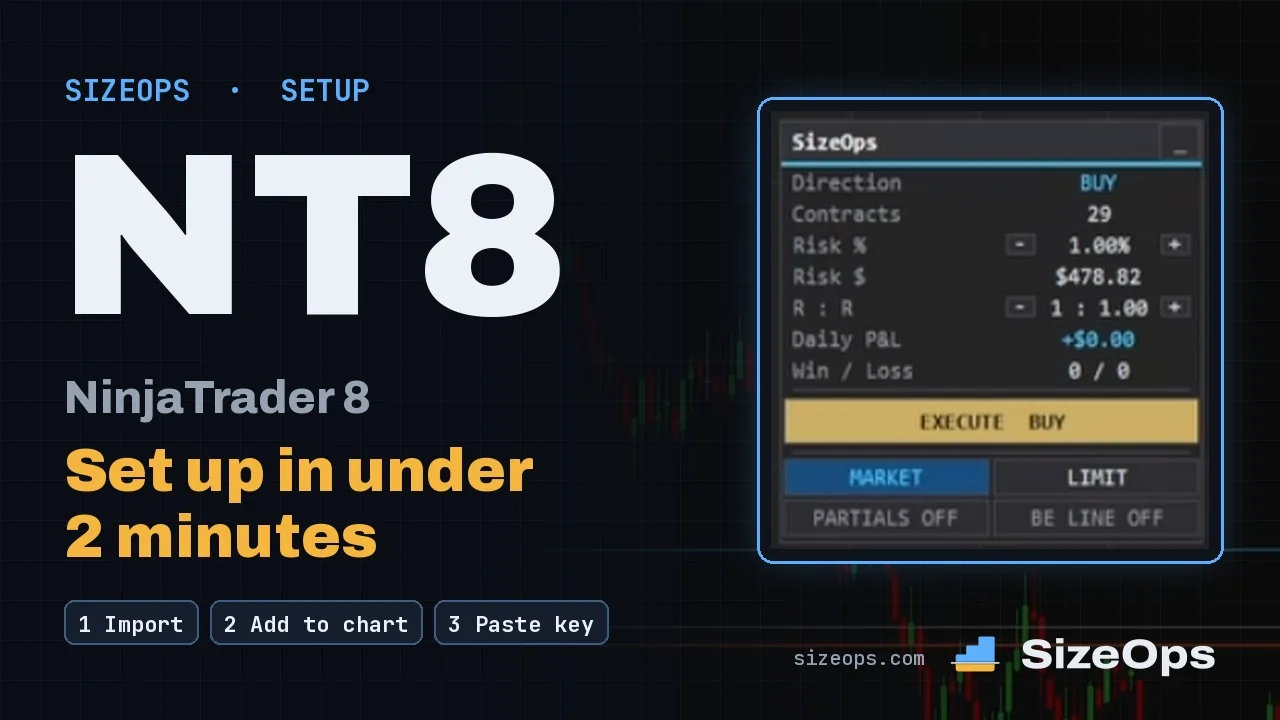
Step 1: Find your account name
Control Center then Accounts tab: right-click the grid → Properties → under Columns, tick Name.
Use Name, not Display Name (the one shown by default). They can differ, and SizeOps goes by Name.
Step 2: Have a free seat on sizeops.com
Log in then Licenses: your plan shows its free seats. Nothing to type: put your key in SizeOps; the account registers itself the first time it connects.
- Your plan runs as many trading accounts at a time as you picked, on any platform: MetaTrader 4, MetaTrader 5 and NinjaTrader 8, mixed any way.
- Changing it later: ⇄ on the account frees its seat (the old one keeps working until the next account connects; the switch is only used then). ✕ removes it for free.
- Want a seat kept for one account? On the free seat, or add one yourself and type the account name.
- On a free trial: open Trials in your account and Start 7 days free. The first account on that platform that connects with your key takes the seat, and its 7 days start then.
Step 3: Install SizeOps
Tools then Import then NinjaScript Add-On, pick
SizeOpsNT.zip.The file: Download on your Licenses card.
Step 4: Add SizeOps to a chart
On the chart press Ctrl+I (or right-click the chart → Indicators), search SizeOps and add it.
Chart Trader: not required. SizeOps floats on your chart by default: drag it by its header. Like Chart Trader? Set Panel location (group 13) to Chart Trader and SizeOps fills in its quantity there.
Step 5: Paste your key
Copy your key from Licenses then Your key. In the same window, under 1. Start here, paste it into License. Press OK.
Your key is the same on every platform. Capital letters, spaces and dashes don't matter.
Step 6: Check it's connected
The panel shows License OK, and on sizeops.com the account shows on your Licenses card, connected.
Not connecting? The panel title shows SizeOps (!) with the reason. See License in the user manual.
Good to know
- Import failed? Close NinjaTrader, quit OneDrive and try again, or follow NinjaTrader's help article.
- Keep SizeOps' stop. If you replace it with your own by hand, BE won't move yours.
- The +/− buttons change risk or R:R for your next trade only. After you press EXECUTE, your defaults come back.
- Dragging the stop changes this plan only. The next one starts at your setting.
- On SizeOps 5.29? It doesn't know the new keys. Update to SizeOps 5.32 first, then paste your key.
- Which key is in use? Hover the panel title: Key: SIZE-E7K2-••••-•••• (the rest stays hidden).
Update SizeOps
Get the new file: Download on your Licenses page.
- MetaTrader 4 and 5: File then Open Data Folder. Copy the new file into
MQL4\Experts(MetaTrader 4) orMQL5\Experts(MetaTrader 5), replacing the old one. Then restart MetaTrader. - NinjaTrader 8: Tools then Import then NinjaScript Add-On, pick
SizeOpsNT.zipand let it replace the old one. Then restart NinjaTrader. - Your settings stay as they are.
- Hover the panel title to see the version. Licenses shows the update until every account runs it.
Stuck?
“MetaTrader says WebRequest blocked”
Tools then Options then Expert Advisors (MetaTrader 4) or Experts (MetaTrader 5): tick Allow WebRequest for listed URL and add https://sizeops.com. Then remove SizeOps from the chart and add it again.
“My EA isn't working”
Look at the panel title: SizeOps (!) means the license check failed, and the reason sits under CHECK LICENSE. Check Algo Trading is on, WebRequest allows sizeops.com, and your key is pasted in 1. Start here.
“How do I turn on Algo Trading?”
Click Algo Trading in MetaTrader 5's toolbar (AutoTrading in MetaTrader 4), and on SizeOps' Common tab tick Allow Algo Trading (MetaTrader 4: Allow live trading).
“Where's my license key?”
On sizeops.com: Licenses then Your key, then Show and Copy key. One key for every platform and account on your plan.
hey trader,
License OK? You're in. One more thing:
Please. Don't. Move. Your stop.
Your size was worked out for that stop. Move it further away and the loss at the stop grows with it.